Managing projects
A project is where a driver's telemetry lives. Each project has its own project token and its own settings. Most teams use one project per driver, often with separate projects for development and production. You can create as many projects as your plan allows.
Projects are not places you navigate into. The events, logs, and errors views are scoped to your whole organization, and the project filter above each one narrows what you're looking at. Selecting a single project is how you focus on one driver; leaving everything selected shows the organization as a whole.
Creating and managing projects requires the owner or admin role in the organization. See Members & roles.
Using the project filter
The project filter sits next to the time range above the dashboard, Events, Logs, and Errors. Tick the projects you want and the view (including its histogram and facet counts) recalculates for that selection.
Your selection is held in the page URL, so a filtered view is a link you can send to a colleague and they'll see the same thing. Clearing the selection returns to all projects and leaves the URL clean.
Because the views merge several projects into one stream, each row carries a pair of small badges naming the project and its platform. That's how you tell which driver a log line or error came from without narrowing the filter.
Creating a project
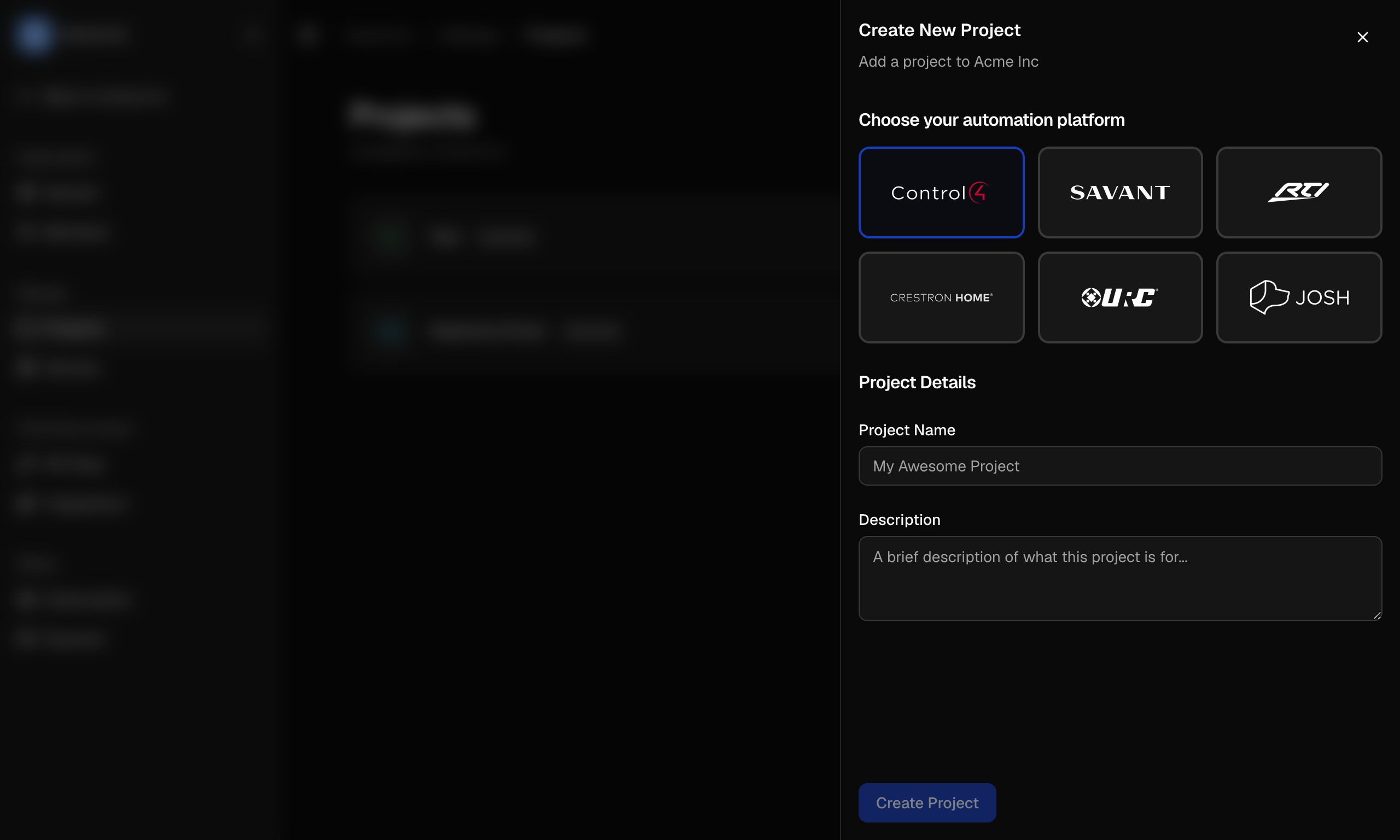
You can start a new project from either of two places:
- the New project row at the bottom of the project filter dropdown, or
- the New Project button on the Settings → Projects page.
Then:
- Select the platform your driver targets. Control4 is supported today; selecting another platform shows a "coming soon" notice.
- Type a Project Name. This is how the project appears throughout Anvil, and you can change it later.
- Optionally add a Description to remind you and your team what the project is for.
- Click Create Project.
When the project is created, Anvil mints its project token so you can start sending telemetry immediately (see Project tokens and API keys), then takes you straight to the setup instructions with the filter narrowed to your new project.
From there, follow the Quick Start to wire the SDK into your driver and send your first events. The setup view is a temporary state: once telemetry arrives, that same page becomes the normal dashboard.
Your plan sets how many projects an organization can have. If you've reached the limit, you'll be prompted to upgrade instead of creating another.
The Projects page
Settings → Projects lists every project in the organization. Each row shows the project's name, platform, description, and a sparkline of the last 24 hours of activity, so you can see at a glance which drivers are busy.
A project that hasn't received data yet shows a Complete setup button instead of a sparkline, which takes you to its setup instructions.
Project settings
Click the gear icon on a project's row to open its settings drawer. Everything about a single project lives there:
- Project Name, to rename the project.
- Project Slug, the short identifier used when a project appears in a URL (lowercase letters, numbers, and hyphens).
- Description, the optional description.
- Project Token, the value your driver sends telemetry with. It identifies the project and is created with it. See Project tokens for why it's safe to commit.
- Danger Zone, to delete the project.
Click Save Changes to apply your edits.
Deleting a project
- Open the project's settings drawer from Settings → Projects.
- Scroll to the Danger Zone and click Delete project.
- In the confirmation dialog, type the project's name exactly, then confirm.
Deleting a project is permanent. Its events, logs, errors, and its project token are removed and can't be recovered. Because the token goes with it, any installed driver still sending with it stops resolving. Migrate or export anything you still need first.
Further reading
- Quick Start, wire the SDK into your driver and send your first events
- Project tokens, how a project's token works and why it's safe to commit
- Members & roles, who can create and manage projects
- Plans, project limits by plan