Devices
A device is a Control4 controller that's registered to your organization. A controller registers itself when the Anvil Agent is installed on it, and from then on it's a target you can deploy drivers to with the CLI.
Managing devices requires the owner or admin role.
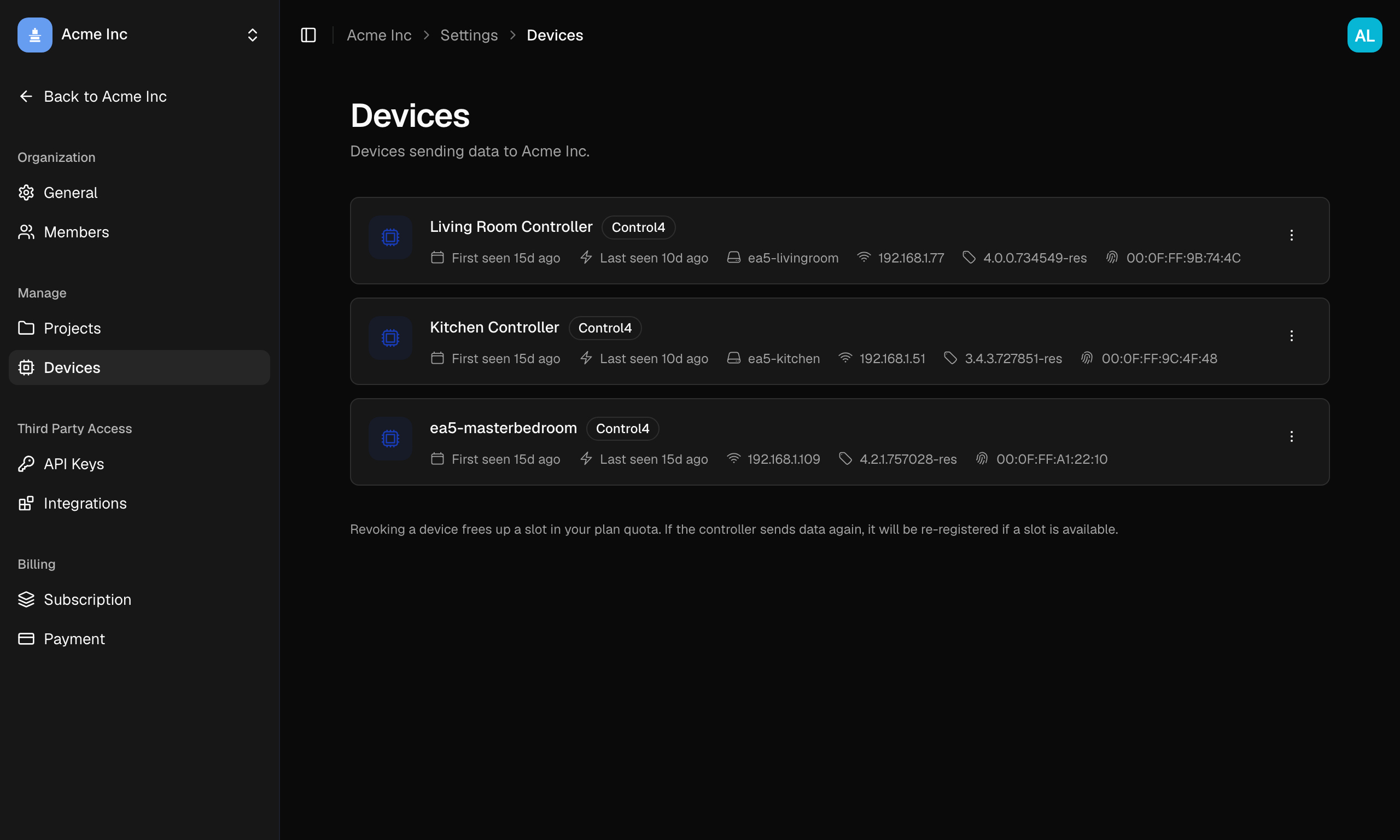
The Devices page
Devices is reachable from the Manage group in the sidebar, and also from
Settings → Devices. It lists every controller registered to your organization,
with its name, address, platform, and status (for example Active or
Revoked). The driverforge device commands work against this
same list: driverforge device list shows these controllers and driverforge device select chooses which one the CLI deploys to.
Devices belong to the organization rather than to any one project, so the project filter doesn't apply here.
Renaming a device
Controllers register with a system-generated name; give yours something memorable.
- On the Devices page, open the ⋯ menu for the device and choose Rename.
- Enter a new name and save.
Revoking a device
Revoking cuts a controller off: it stops accepting that controller's telemetry and frees the device's slot in your plan quota.
- Open the ⋯ menu for the device and choose Revoke device.
- Confirm in the dialog.
A revoked controller shows a Revoked status. If the controller sends data again it is re-registered automatically, provided a slot is available.
Removing a device
Remove device in the ⋯ menu deletes the controller from the list entirely. Use it to tidy up hardware you've retired, rather than as a way to block a controller; a removed controller that sends data again re-registers like any new one.
Device limits
Your plan sets how many active controllers your organization can have. If you hit the limit, revoke a controller you no longer use or upgrade. Anvil warns you in the app when new controllers are being turned away because the quota is full.
Further reading
- Anvil Agent: how a controller registers and what the agent does
driverforge device: selecting the deploy target from the CLIdriverforge deploy/driverforge sync: pushing drivers to a controller